Installation
There is nothing to install in HubSpot. Trading Cards runs at app.tradingcards.dev and deploys templates into your portal for you.
1. Sign in
Section titled “1. Sign in”Go to app.tradingcards.dev and enter your email address. We’ll email you a sign-in link — there is no password to remember.
Your account is created the first time you sign in. Each link works once and expires after 10 minutes.
2. Generate a Personal Access Key
Section titled “2. Generate a Personal Access Key”Trading Cards uses your HubSpot Personal Access Key to deploy templates into your portal via the HubSpot CLI. This key authenticates the CLI as you, so templates are deployed under your account’s permissions.
To generate one:
- In HubSpot, navigate to Development → Keys → Personal Access Key
- Click Generate personal access key
- Select the scopes required for the templates you want to use
- Copy the generated key
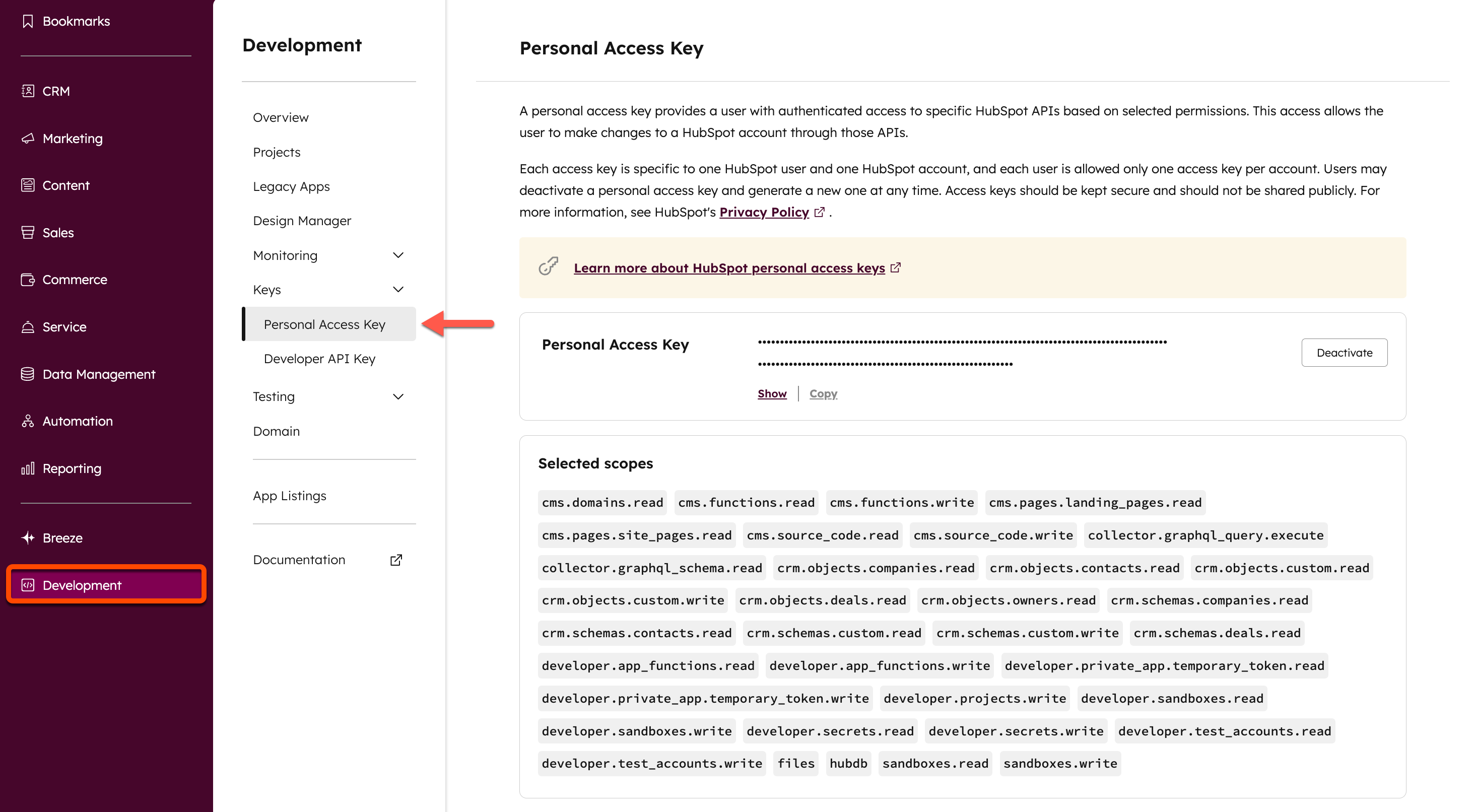
Note: Your Personal Access Key is tied to your HubSpot user permissions. You must have Developer tools access in your portal to deploy projects. Each account can only have one active key at a time — generating a new one deactivates the previous one.
3. Connect your portal
Section titled “3. Connect your portal”The first time you sign in, you’ll be asked to connect a portal:
- Give the portal a name you’ll recognise
- Enter its Portal ID (also called the Hub ID). In HubSpot, click your account name in the top right corner; the ID is shown under the account name
- Paste your Personal Access Key and click Connect portal
Trading Cards checks the key with HubSpot before saving it. The key is stored encrypted and used only to deploy templates into that portal.
To connect more portals later, go to Settings, add the portal under Add a portal, then paste its key and click Save key. You can replace or remove a key, or disconnect a portal, from the same screen. Use the portal switcher in the top right to choose which portal you’re working in.
4. Deploy a template
Section titled “4. Deploy a template”- Open the Library
- Find a template and click Deploy
- Wait for the deployment to finish — the card shows its progress
The template will appear as a new card on the relevant CRM records in your portal. Everything you’ve deployed to the current portal is listed under Installed, where an Update button appears when a newer version is available.
Removing a template
Section titled “Removing a template”Under Installed, choose Manage → Delete from portal. This removes the template from your installed list and, if you choose, its configuration file. Trading Cards then gives you a link to delete the project itself in HubSpot, which completes the removal.